🚀 Big upgrades in progress! New tools, faster pages, and more coming soon.

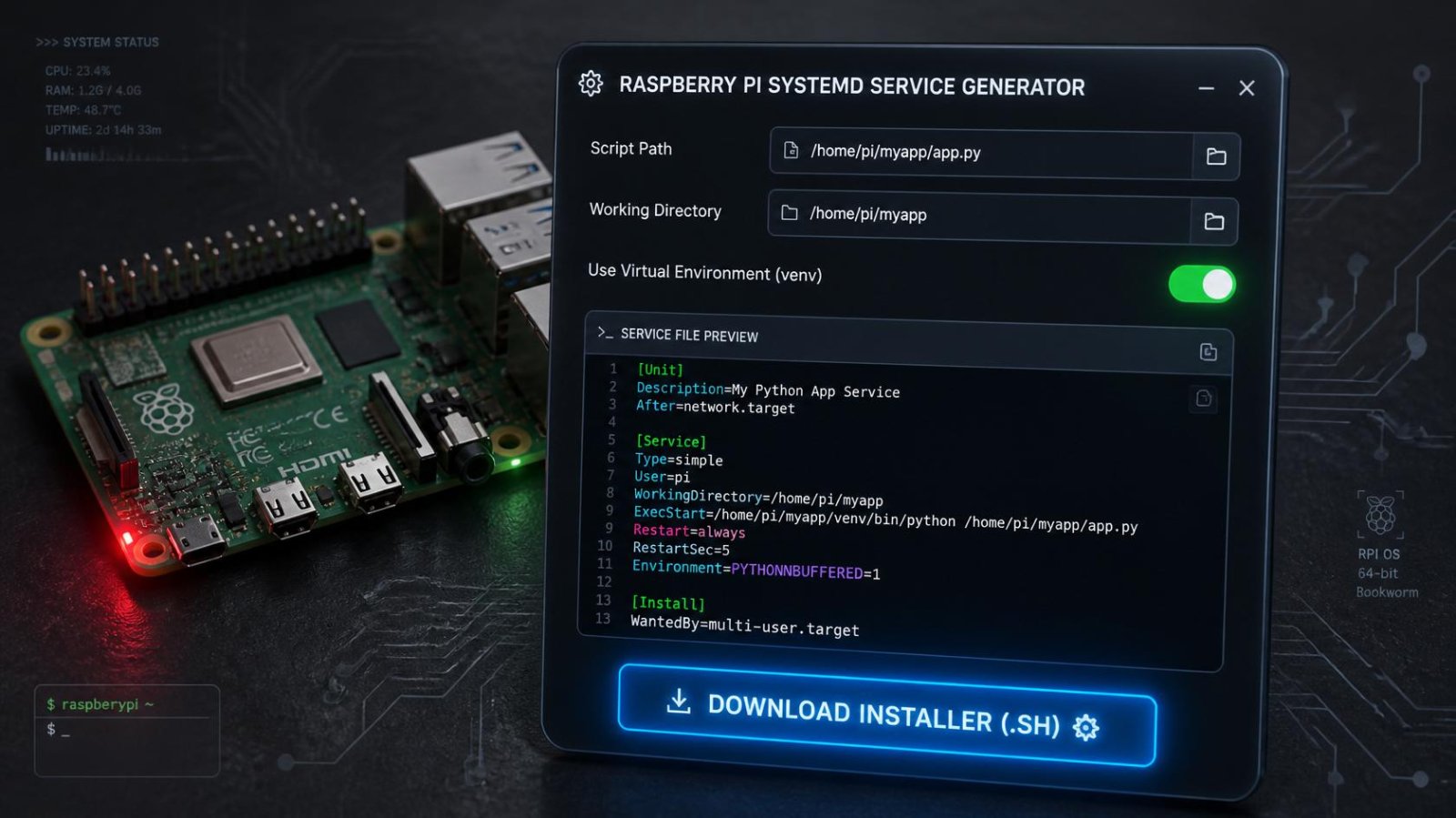
🍓 Raspberry Pi Python Bot Auto-Start — systemd Service Generator

Free tool to generate a systemd service installer for any Python bot on Raspberry Pi. Runs inside your virtual environment, auto-starts on boot, restarts on crash. Download a ready-to-run .sh installer.

✓ Raspberry Pi (.py) ✓ Live code preview ✓ Free download
Confirmed Working on Raspberry Pi
This generator was tested live on a Raspberry Pi running the Hikvision Alarm Host dashboard. The service started successfully, connected to the DVR, and logged activity — all without any manual terminal session. The Pi was rebooted and the service resumed automatically.

What Is a systemd Service?

When you run your Python bot manually in an SSH terminal — python3 my_bot.py — it stops the moment you close the terminal or the Pi restarts. A systemd service is the production-grade solution: it runs your script in the background, completely detached from any terminal session, and handles three critical things automatically:

🔄
Auto-restart on crash
If your script throws an unhandled exception, systemd restarts it automatically after 10 seconds
🚀
Auto-start on boot
Power cut, reboot, or crash — your bot comes back up by itself every time
📋
Full log capture
Every print() and log statement captured to the system journal — readable anytime via SSH

How the Generator Works

Fill in 7 fields above and click Download code (.sh). You get a personalised shell script that does everything in one step — no manual editing needed.

1
Fill in your details — service name, username, venv path, script path, working directory, boot delay
2
Download the installer — a .sh file named install_yourbot.sh downloads to your computer
3
Copy to your Pi — via SCP, SFTP, or paste the contents directly into an SSH session
4
Run it once — the installer creates the service file, enables it on boot, starts it immediately, and prints your management commands

How to Find Your Virtual Environment

Not sure what your venv is called or where it lives? Every virtual environment contains a file called pyvenv.cfg — searching for this file is the most reliable way to find all venvs on your Pi.

Find ALL virtual environments in your home folder:

find ~/ -name 'pyvenv.cfg' 2>/dev/null
Example output:
/home/admin/godbot_venv/pyvenv.cfg
/home/admin/venv/pyvenv.cfg
The folder containing pyvenv.cfg is your venv root. The Python binary is at that folder + /bin/python.

Find the exact Python path to paste into the generator:

find ~/ -path '*/bin/python' -not -path '*/usr/*' 2>/dev/null
Example output: /home/admin/godbot_venv/bin/python
Copy this exact path into the Virtual Environment Python Path field above.

Quick visual check — list all folders in your home:

ls -la ~/
# Look for folders like: godbot_venv venv env .venv myenv

Confirm a folder is a valid venv and your packages are inside it:

# Check the venv is valid
ls ~/godbot_venv/bin/python && echo "Valid venv" || echo "Not found"

# Check your packages are inside it (replace with your package names)
/home/admin/godbot_venv/bin/python -c "import requests; print('requests OK')"
/home/admin/godbot_venv/bin/python -c "import pygame; print('pygame OK')"
Tip: If you installed packages with sudo pip install or pip3 install without activating the venv first, they went into the system Python — not your venv. Always activate first (source ~/godbot_venv/bin/activate) before running pip install.

Finding Your File Paths on the Pi

Not sure what to enter for each field? Run these commands in your Pi's SSH terminal:

Find your Linux username:

# Shows your current username
whoami

Find your virtual environment Python path:

# Activate your venv first, then find the python binary
source ~/godbot_venv/bin/activate
which python
# Output example: /home/admin/godbot_venv/bin/python
Important: Copy the exact path shown — use this in the Virtual Environment Python Path field, not just python3. This is what replaces source activate for systemd.

Find your script's full path:

# Navigate to where your script is and get the full path
ls ~/alarm_host.py
realpath ~/alarm_host.py
# Output example: /home/admin/alarm_host.py

Verify the service will find your packages:

# Run this to confirm the venv python binary is active (no source needed)
/home/admin/godbot_venv/bin/python -c "import sys; print(sys.prefix)"
# Should print: /home/admin/godbot_venv (confirms venv is active)

Where the Service File Lives

After running the installer, your service file is created at:

/etc/systemd/system/your_service_name.service

View its contents at any time:

cat /etc/systemd/system/my_python_bot.service

Management Commands Cheat Sheet

Replace my_python_bot with your actual service name throughout.

Check status — is the service running?
sudo systemctl status my_python_bot.service
View live logs (streaming, Ctrl+C to exit)
sudo journalctl -u my_python_bot.service -f
View last 50 log lines (static, no streaming)
sudo journalctl -u my_python_bot.service -n 50 --no-pager
Stop the service (stays disabled until manually started)
sudo systemctl stop my_python_bot.service
Start the service manually
sudo systemctl start my_python_bot.service
Restart (useful after updating your script)
sudo systemctl restart my_python_bot.service
Force kill (if the service is frozen and won't stop)
sudo systemctl kill my_python_bot.service

Disabling and Removing a Service

Disable auto-start (keeps the service file, just stops it from running on boot):

sudo systemctl disable my_python_bot.service

Re-enable auto-start:

sudo systemctl enable my_python_bot.service

Completely remove the service (stop, disable, and delete the file):

sudo systemctl stop my_python_bot.service
sudo systemctl disable my_python_bot.service
sudo rm /etc/systemd/system/my_python_bot.service
sudo systemctl daemon-reload
sudo systemctl reset-failed
Note: daemon-reload is required after deleting a service file. Without it, systemd still shows the old service in its cache.

Updating Your Script Without Reinstalling

After uploading a new version of your Python script to the Pi, just restart the service — no need to reinstall:

# Upload your updated script, then:
sudo systemctl restart my_python_bot.service
# Verify it came back up cleanly:
sudo systemctl status my_python_bot.service

The service file itself only needs to be recreated if you change the script path, venv, username, or boot delay. For those changes, generate a new installer from this page and re-run it — the installer safely overwrites the existing service file.

Troubleshooting

Service shows "activating" and never starts
This is the boot delay running. If you set 30 seconds, the service will show as "activating" for 30 seconds before it actually starts your script. This is normal — check back after the delay expires.
Service shows "failed" immediately
Check the logs: sudo journalctl -u my_python_bot.service -n 30 --no-pager
Common causes: wrong venv path, wrong script path, or a Python import error in your script.
ModuleNotFoundError — package not found
Your venv Python path is wrong or points to the system Python instead of your venv. Verify with: /home/admin/godbot_venv/bin/python -c "import sys; print(sys.prefix)" — it must print your venv path, not /usr.
Script works manually but fails as a service
Services run without a home directory or shell environment. Common fixes: use absolute paths everywhere in your script (not ~/ or relative paths), and increase the boot delay if your script depends on network/WiFi being ready.
Service keeps restarting in a loop
Your script is crashing and systemd is restarting it (this is normal behaviour — it's doing its job). Check the logs to find the error causing the crash, fix it in your script, then restart the service.

Real Output — Confirmed Working

This is the actual terminal output from running the installer on a Raspberry Pi with the Hikvision Alarm Host script:

Installing service: my_python_bot
Created symlink '/etc/systemd/system/multi-user.target.wants/my_python_bot.service'
  → '/etc/systemd/system/my_python_bot.service'

● my_python_bot.service - My Python Bot Service
     Loaded: loaded (/etc/systemd/system/my_python_bot.service; enabled; preset: enabled)
     Active: active (running) since Sun 2026-07-05 15:04:11 IST; 2s ago
    Process: ExecStartPre=/bin/sleep 30 (code=exited, status=0/SUCCESS)
   Main PID: 1504 (python)
     CGroup: /system.slice/my_python_bot.service
             └─1504 /home/admin/godbot_venv/bin/python /home/admin/alarm_host.py

Jul 05 15:04:14 raspberrypi python[1504]: [INFO] Fetching DVR time for clock sync check...
Jul 05 15:04:14 raspberrypi python[1504]: [INFO] Alarm host starting...
Jul 05 15:04:14 raspberrypi python[1504]: [INFO] Connection attempt #1 — connecting to DVR...

=== Management Commands ===
Status:  sudo systemctl status my_python_bot.service
Logs:    sudo journalctl -u my_python_bot.service -n 50 --no-pager
Stop:    sudo systemctl stop my_python_bot.service
Restart: sudo systemctl restart my_python_bot.service

Done! my_python_bot is running as a service.
⚙️
Customise & Download
Adjust settings below — the code updates live in real time
Live preview
Configure your Raspberry Pi Python Bot — systemd Auto-Start Service Generator
Short name with no spaces — used as the .service filename and in all systemctl commands. Example: quiz_bot or alarm_host
Human-readable description shown when you run systemctl status. Example: Techlogics Quiz Bot
The Pi user who owns the script. Use admin for most setups, or pi for older Raspberry Pi OS installs.
Replaces source activate — point directly to the python binary inside your venv. Example: /home/admin/godbot_venv/bin/python
The folder systemd uses as the working directory. Usually the same folder as your script.
Seconds to wait after boot before starting. 30 seconds recommended so network is fully ready.
↓ Your settings are reflected in the code below
Generated code — live preview
Raspberry Pi (.py) 0 lines
# ============================================================
#  Raspberry Pi Python Bot — systemd Auto-Start Service Generator
#  Generated by techlogics.net
#  https://techlogics.net/electronics/raspberry-pi-systemd-service-generator.php
# ============================================================
#
#  CAUTION: Review this code fully before running on any
#  hardware. Verify all pin connections and power requirements
#  match YOUR specific components. We are not responsible for
#  damage to hardware, fire, or injury resulting from incorrect
#  wiring, faulty components, or misuse of this code.
#
#  Generated on: 09 Jul 2026
# ============================================================

#!/bin/bash
# ============================================================
#  Raspberry Pi systemd Service Installer
#  Generated by techlogics.net
#  Run: chmod +x install_my_python_bot.sh && sudo bash install_my_python_bot.sh
# ============================================================

echo "Installing service: my_python_bot"

# Write the service file
sudo bash -c 'cat > /etc/systemd/system/my_python_bot.service' << 'ENDOFSERVICE'
[Unit]
Description=My Python Bot Service
After=network.target

[Service]
Type=simple
ExecStartPre=/bin/sleep 30
ExecStart=/home/admin/godbot_venv/bin/python /home/admin/GOD_BOT.py
WorkingDirectory=/home/admin
StandardOutput=inherit
StandardError=inherit
Restart=always
RestartSec=10
User=admin

[Install]
WantedBy=multi-user.target
ENDOFSERVICE

# Enable and start
sudo systemctl daemon-reload
sudo systemctl enable my_python_bot.service
sudo systemctl start my_python_bot.service
sleep 2
sudo systemctl status my_python_bot.service --no-pager

echo ""
echo "=== Management Commands ==="
echo "Status:  sudo systemctl status my_python_bot.service"
echo "Logs:    sudo journalctl -u my_python_bot.service -n 50 --no-pager"
echo "Stop:    sudo systemctl stop my_python_bot.service"
echo "Start:   sudo systemctl start my_python_bot.service"
echo "Restart: sudo systemctl restart my_python_bot.service"
echo "Disable: sudo systemctl disable my_python_bot.service"
echo "Kill:    sudo systemctl kill my_python_bot.service"
echo ""
echo "Done! my_python_bot is running as a service."


# ============================================================
#  End of generated code — techlogics.net
#  Found this useful? Visit https://techlogics.net/electronics/raspberry-pi-systemd-service-generator.php
#  for more free CCTV, networking, electronics & finance tools.
#
#  Questions or issues? https://techlogics.net/contact.php
# ============================================================