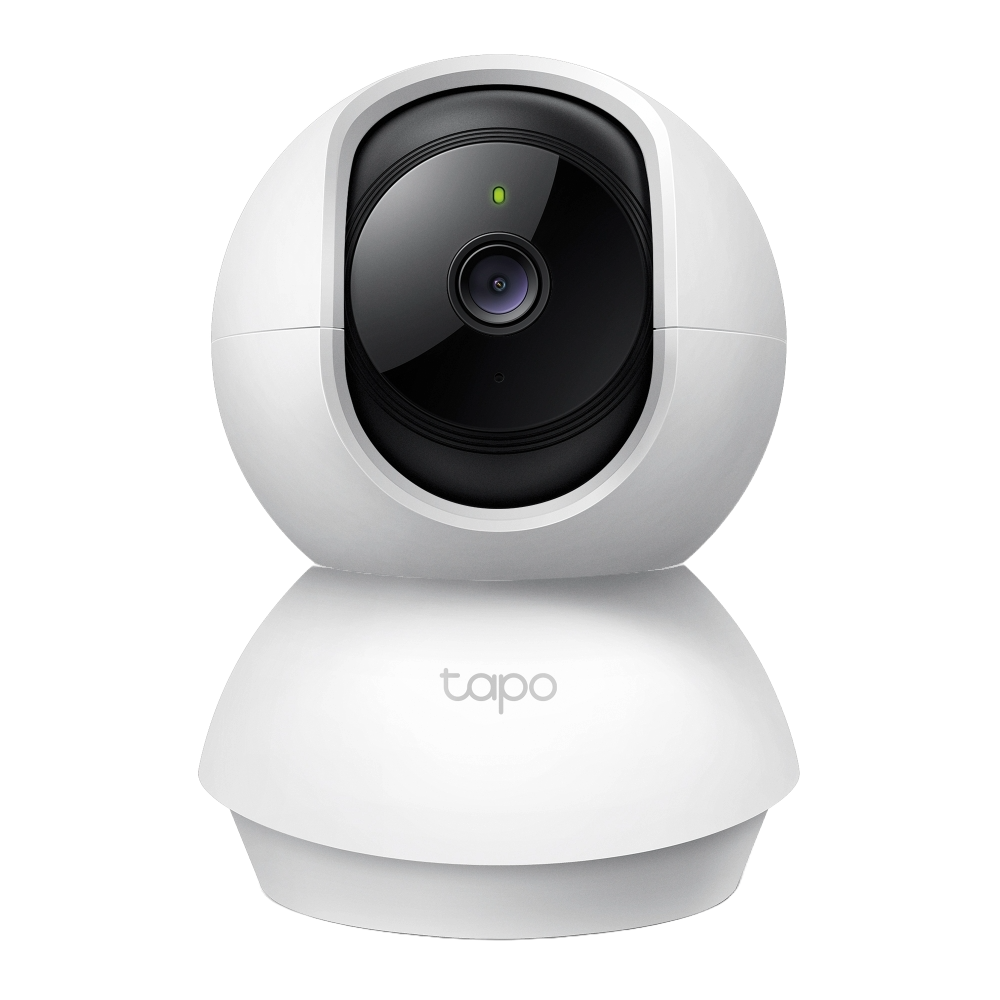
Setting up your V380 Smart Indoor Pan & Tilt Home Security Camera with a 4G SIM card and microSD memory card is straightforward — but getting the orientation and insertion right is key to reliable network connection and local video storage.
Whether you’re enabling 4G remote viewing without Wi-Fi or adding onboard recording to avoid missing important footage, this detailed guide walks you through the entire process safely and correctly.
Why Proper Installation Matters
Inserting the cards incorrectly can lead to connection failures, recording errors, or even damage to the cards or camera. Following these steps ensures your V380 connects smoothly to the 4G network and stores footage reliably.
Step 1: Power Off the Camera First
Always begin by unplugging the camera or switching it off completely. This quick safety step prevents any risk of damaging the device, the SIM card, or the microSD card during insertion. It takes just a moment but can save you from potential issues down the line.
Step 2: Locate the Card Slots
On the V380 indoor pan-and-tilt model, both the SIM card and microSD card slots are located at the bottom of the rotating lens.
Gently lift or tilt the lens upward to expose the slots. Handle this part carefully to avoid straining or damaging the moving components.
You’ll find two separate slots:
- The upper (or top) slot — usually slightly thinner — is for the nano-SIM card.
- The lower (bottom) slot is for the microSD card.


Step 3: Inserting the 4G SIM Card
Use a standard nano-SIM with an active 4G data plan. Before inserting, ensure the SIM is not PIN-locked (disable the PIN using your phone if necessary).
Align the SIM card correctly: gold contacts facing down. Look for small orientation icons, notches, or markings on the slot or camera body to confirm.
Gently slide the SIM into the upper slot. It should go in smoothly — if it resists, remove it, flip it over, and try again. Push until you hear or feel a click. The card should sit flush and secure.
To remove or eject the SIM later, simply press it gently inward — it will pop out for easy access.


Step 4: Inserting the microSD Card for Storage
For local recording, insert a Class 10 or higher microSD card (up to 128GB is widely supported and recommended for this model).
Orientation: gold contacts facing up (double-check any icons or markings near the slot).
Slide the card in smoothly until it clicks into place.
A 128GB high-endurance card (designed specifically for surveillance use) typically stores 5–7 days of footage. Storage duration varies based on video resolution, frame rate, and whether you use continuous recording or motion-triggered mode. For best reliability and longevity, always choose a card rated for continuous writing.


Step 5: Double-Check and Power On
Before powering up, ensure both cards are fully seated with no loose edges. This simple verification helps prevent connection drops, failed recordings, or data corruption.
Now plug the camera back in using the provided DC power adapter. Give it a few moments to boot up.
Step 6: Confirm 4G Connection with Voice Prompts
Listen carefully after powering on. The camera should announce voice prompts such as:
- “Network connection succeeded”
- “4G connected”
These audio confirmations mean the SIM card is recognized and the camera is online via 4G — you’re ready to proceed!
Step 7: Final Setup with the V380 App
Download the V380 app (available for free on Android and iOS).
Add your camera by scanning the QR code on the device or manually entering the device ID.
Once added, you can configure recording options, motion detection, alerts, pan/tilt controls, and more advanced features directly in the app. For in-depth guidance on these settings, explore additional tutorials in the V380 series.
Quick Tips for Best Results
- Use a high-endurance microSD card to handle constant writing without early failure.
- Test your 4G SIM in a phone first to confirm it has a good data plan and signal.
- If the camera doesn’t connect, recheck card orientation, restart the device, or verify signal strength in your location.
With the SIM and microSD cards properly installed, your V380 camera delivers reliable remote monitoring and local storage — giving you peace of mind for home or office security.
Have questions about your V380 setup or run into any issues? Feel free to leave a comment below — we’d love to help!
Happy monitoring! 🛡️📹